
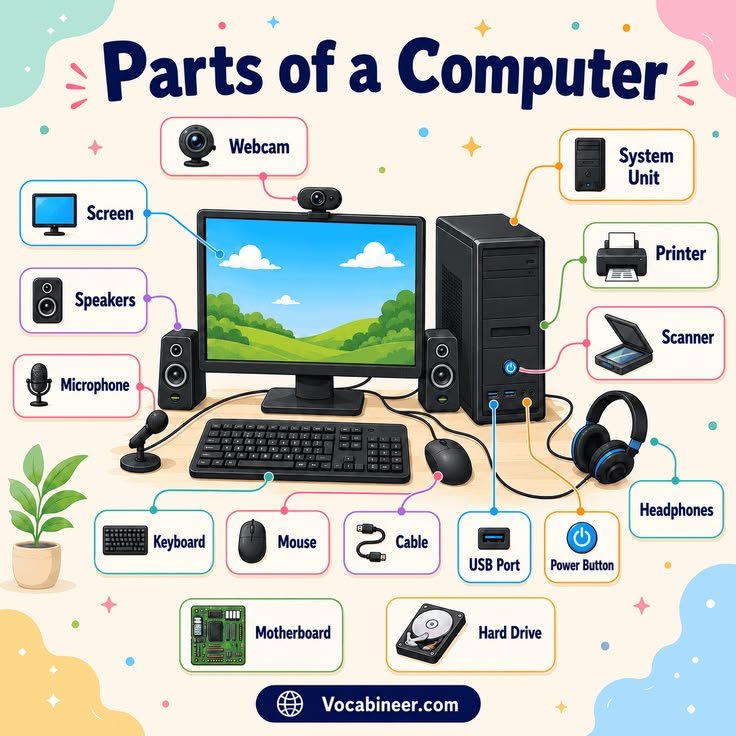
Computers are made up of many different parts, and each component has an important job. If you are new to computers, terms like CPU, RAM, GPU, SSD, motherboard, and power supply can seem confusing. Understanding these basic computer parts makes it easier to choose a PC, upgrade your system, or troubleshoot common problems.
In this guide, we explain the most important computer parts and hardware terms in simple language.
1. CPU – Central Processing Unit
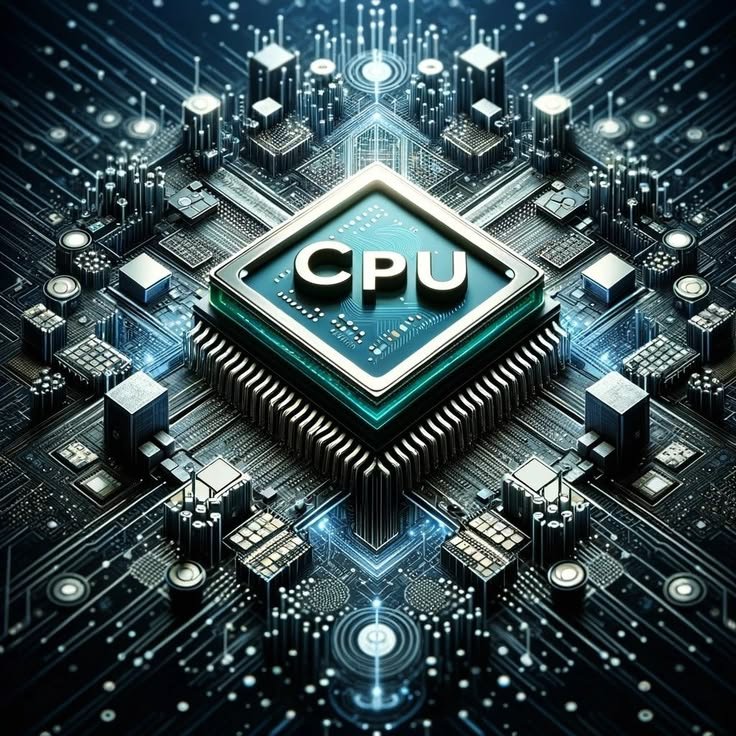
The CPU (Central Processing Unit) is often called the brain of the computer. It processes instructions and performs calculations that allow software and applications to work.
A faster CPU can improve performance, especially when running demanding applications, editing videos, programming, or playing games.
Popular CPU manufacturers include Intel and AMD.
2. GPU – Graphics Processing Unit
The GPU (Graphics Processing Unit) handles graphics and visual tasks. It is especially important for gaming, video editing, 3D design, and other graphics-intensive workloads.
Some computers use integrated graphics built into the CPU, while gaming and professional PCs often use a dedicated graphics card.
3. RAM – Random Access Memory
RAM is the computer’s short-term memory. It temporarily stores data that your computer is actively using.
More RAM allows a PC to handle more applications and browser tabs at the same time. Common capacities include 8GB, 16GB, 32GB, and higher.
Unlike storage, RAM loses its data when the computer is turned off.
4. Storage – SSD and HDD
Storage is where your files, applications, operating system, photos, and videos are permanently saved.
SSD
An SSD (Solid-State Drive) uses flash memory and has no moving parts. SSDs are generally much faster than traditional hard drives, making computers start and load applications more quickly.
HDD
An HDD (Hard Disk Drive) stores data on spinning magnetic disks. HDDs are usually slower than SSDs but can offer large storage capacities at a lower cost.
5. Motherboard
The motherboard is the main circuit board inside a computer. It connects the CPU, RAM, storage drives, graphics card, and other components.
The motherboard also provides slots and ports for connecting additional hardware.
6. Power Supply Unit – PSU
The Power Supply Unit (PSU) converts electricity from the wall into power that the computer’s components can use.
A reliable PSU is important because every major component depends on stable power. When building a PC, the PSU should have enough wattage for the system.
7. Computer Case
The computer case houses and protects the internal components. It also helps with airflow and cooling.
PC cases come in different sizes, including compact, mid-tower, and full-tower designs.
8. Cooling System
Computer components produce heat while operating. A cooling system helps keep temperatures under control.
Common cooling methods include:
- Air cooling
- CPU fans
- Case fans
- Liquid cooling
- Heatsinks
Good airflow can help maintain stable performance and prevent excessive heat.
9. CPU Cooler
A CPU cooler removes heat from the processor. Many CPUs require a dedicated cooler, depending on the processor and system configuration.
CPU coolers can use air cooling or liquid cooling.
10. Monitor
The monitor is the screen used to display images, applications, videos, and games.
Important monitor specifications include:
- Resolution
- Refresh rate
- Response time
- Screen size
- Panel type
For example, a 1920×1080 display is commonly known as Full HD or 1080p.
11. Keyboard
A keyboard is an input device used to type text, enter commands, and control software.
Keyboards can be wired or wireless and may use different switch technologies.
12. Mouse
A mouse is another common input device. It allows users to move the pointer, select items, open applications, and interact with software.
Gaming mice may include adjustable sensitivity and programmable buttons.
13. USB
USB (Universal Serial Bus) is a common connection standard used for devices such as keyboards, mice, storage drives, phones, and other accessories.
Different USB versions can offer different data-transfer speeds and features.
14. HDMI
HDMI (High-Definition Multimedia Interface) is commonly used to transmit digital video and audio from a computer to a monitor, TV, or other compatible display.
It is widely used for gaming systems and multimedia setups.
15. Operating System
The operating system (OS) is the main software that manages a computer’s hardware and provides an environment for applications.
Popular desktop operating systems include Windows, macOS, and Linux.
16. Drivers
Drivers are software components that allow the operating system to communicate correctly with hardware.
Graphics cards, printers, network adapters, and other devices may require specific drivers.
Keeping important drivers updated can help maintain compatibility and performance.
17. Wi-Fi
Wi-Fi allows computers and other devices to connect to a network wirelessly.
A Wi-Fi connection can provide access to the internet and other devices on the same network.
18. Ethernet
Ethernet is a wired networking technology. Computers can connect to a router or network using an Ethernet cable.
A wired connection can provide consistent network performance and is commonly used for desktop PCs and gaming setups.
19. BIOS and UEFI
BIOS and UEFI are firmware interfaces that help initialize hardware when a computer starts.
Modern computers commonly use UEFI, which is the newer replacement for traditional BIOS systems.
20. Ports and Connectors
Computer ports allow external devices to connect to the system. Common ports include:
- USB
- HDMI
- DisplayPort
- Ethernet
- Audio jack
- USB-C
The available ports depend on the motherboard, laptop, desktop case, and other hardware.
Computer Terms Beginners Should Know
Here are some additional terms that are useful when learning about computers:
Clock Speed: Usually measured in GHz, it indicates how quickly a CPU operates at a given moment.
Core: A processing unit inside a CPU. Modern processors can have multiple cores.
Thread: A sequence of programmed instructions that a CPU can process.
VRAM: Video memory used by a dedicated GPU to store graphics-related data.
Resolution: The number of pixels displayed on a screen, such as 1920×1080.
Refresh Rate: Measured in Hz, it describes how many times a display can refresh its image each second.
Cache: Small, fast memory used by the CPU to store frequently needed data.
Form Factor: The physical size and layout standard of a computer component.
Why Understanding Computer Parts Matters
Knowing basic computer hardware can help you make better decisions when buying or upgrading a PC. Instead of looking only at specifications, you can understand what each component actually does.
For example, a gamer may pay more attention to the GPU, while someone who works with many applications may benefit from more RAM and fast storage. A video editor may need a powerful CPU, GPU, and plenty of storage.
Understanding these terms can also make troubleshooting easier. If your computer is slow, you can begin by checking whether the problem is related to storage, RAM, CPU usage, temperatures, or another component.
Final Thoughts
Computer hardware may seem complicated at first, but learning the basic parts makes it much easier to understand how a PC works. The CPU processes instructions, RAM provides temporary working memory, storage keeps your files, the GPU handles graphics, and the motherboard connects everything together.
Whether you are buying your first computer, upgrading an existing PC, or simply learning about technology, understanding these computer parts and terms gives you a strong foundation.